


Latest Version
Latest
November 29, 2026
OBS Project
Media
Linux
0
Free
Report a Problem
Old Versions of OBS Studio
OBS Studio
November 29, 2026More About OBS Studio
OBS Studio (Open Broadcaster Software) is the free, open-source standard for live streaming and screen recording, and it runs as a first-class citizen on Linux. Whether you want to stream gameplay to Twitch, record a tutorial for YouTube, or capture a video call, OBS gives you professional tools — scenes, sources, transitions and a full audio mixer — without costing anything or stamping a watermark on your videos.
Key Features
- Live streaming: stream to YouTube, Twitch, Facebook and any RTMP service
- Screen recording: capture your whole screen, a window or a game in high quality
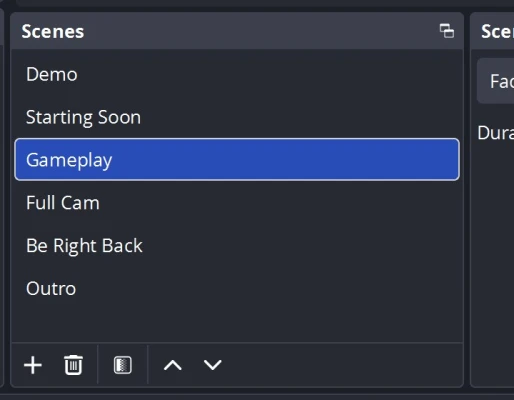
- Scenes and sources: combine webcam, screen, images, text and browser sources
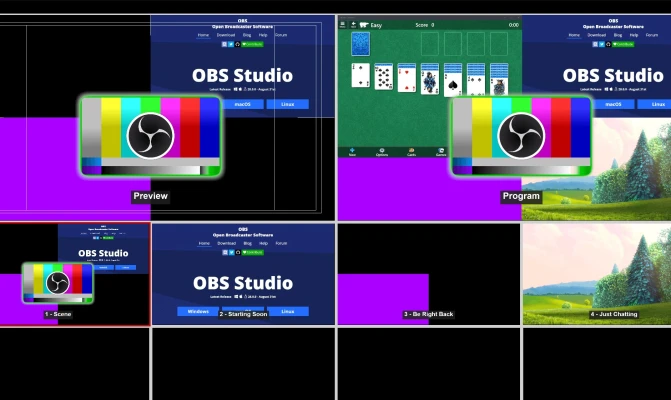
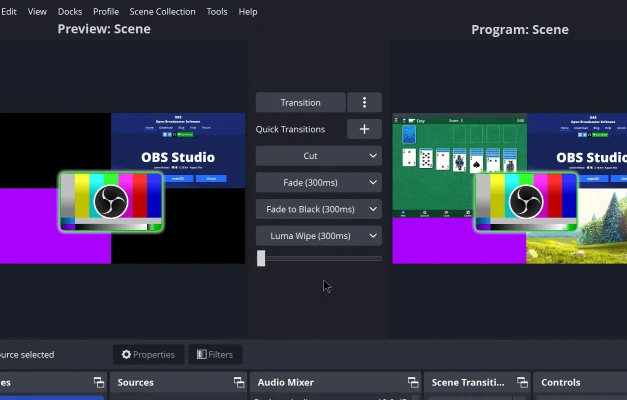
- Studio Mode: preview scenes and transitions before they go live
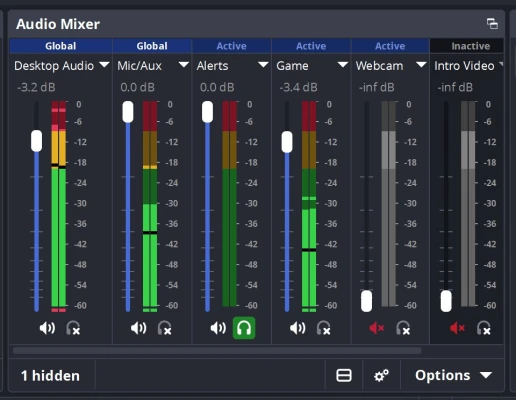
- Audio mixer: control microphone and desktop audio with filters like noise suppression
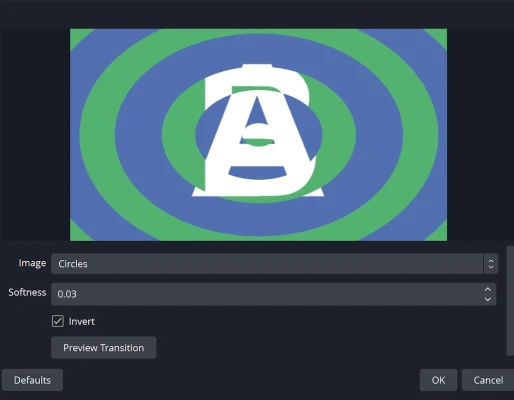
- Transitions: smooth cuts, fades, stingers and custom scene transitions
- Hotkeys: switch scenes, start recordings and mute audio with keyboard shortcuts
- Plug-ins and themes: extend OBS with community plug-ins and custom layouts
- Free and open source: no watermark, no subscription, no feature locked behind a paywall
How to Install OBS Studio on Linux
1. Tap the download button on this page to open the official OBS Studio download page.
2. On Ubuntu 24.04 or newer, add the official OBS PPA and install with apt; on other distributions, install the official Flatpak from Flathub (flatpak install flathub com.obsproject.Studio).
3. Open OBS Studio from your applications menu.
4. Run the auto-configuration wizard to pick the best settings for recording or streaming, then add a source and press Start Recording or Start Streaming.