


Latest Version
3.2.8
November 29, 2026
The GIMP Team
Design
Mac
0
Free
Report a Problem
Old Versions of GIMP
GIMP
November 29, 2026More About GIMP
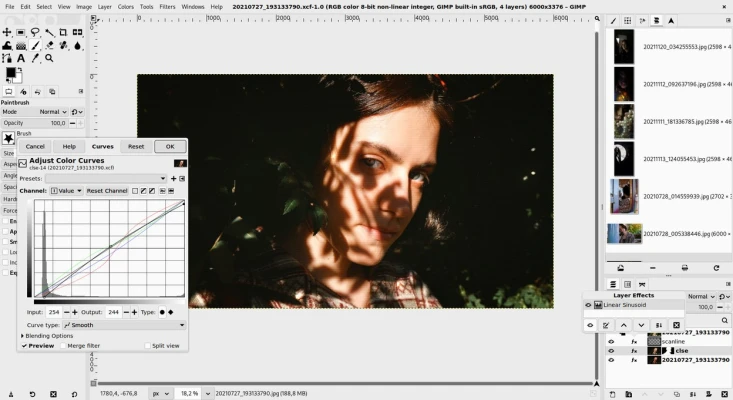
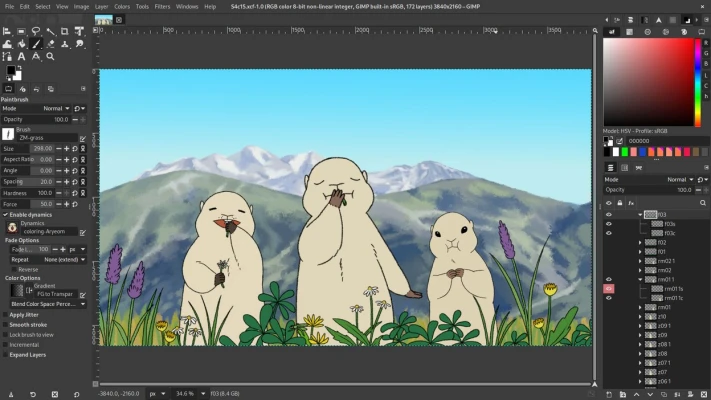
GIMP (GNU Image Manipulation Program) is a free, open-source image editor that has been the go-to free alternative to paid photo software for over twenty-five years. On Mac it runs natively on both Apple Silicon and Intel machines, giving you professional photo retouching, image composition and graphic design tools — completely free, with no subscription and no watermark on your work.
Key Features
- Photo retouching: fix exposure, colour and sharpness, and remove unwanted objects
- Layers and masks: work non-destructively with layers, layer masks and blend modes
- Selection tools: precise selections with paths, fuzzy select and free select
- Painting and drawing: brushes, gradients, patterns and a full set of drawing tools
- Filters and effects: hundreds of built-in filters, from blur and sharpen to artistic effects
- File formats: open and save PSD, JPEG, PNG, TIFF, GIF, WebP and many more
- Customisable: dockable panels, custom shortcuts, themes and hundreds of free plug-ins
- Scripting: automate repetitive edits with Script-Fu and Python-Fu
- Free and open source: no cost, no ads, no account — your work stays yours
How to Install GIMP on Mac
1. Tap the download button on this page to open the official GIMP download page.
2. Choose the macOS build for your Mac — Apple Silicon (M1/M2/M3/M4) or Intel.
3. Open the downloaded .dmg file and drag GIMP into the Applications folder.
4. Open GIMP from Applications and start editing — no sign-up needed.