How to Download Google Maps Offline and Use It Without Internet
11 min read Learn how to download Google Maps offline on Android and iPhone. Step-by-step guide to saving offline maps, using navigation without internet, and managing your downloads. November 28, 2026 20:59
Knowing how to download Google Maps offline can save a trip. Mobile signal disappears in tunnels, rural roads, airports and foreign cities, often at the exact moment you need directions most. Google Maps lets you save whole areas to your phone in advance, so you can keep navigating even with no internet connection at all. It is free, built into the app, and takes less than a minute to set up.
This guide explains how to download an offline map on Android and iPhone, how to use Google Maps without internet once the map is saved, and what the feature can and cannot do. Download your maps over Wi-Fi before you travel, and you will never be stranded by a lost signal again.
What Are Google Maps Offline Maps?
Google Maps offline maps are areas of the map that you save directly on your phone. Once an area is downloaded, the map data, place names and road network for that area live on your device, so the app does not need to fetch them from the internet. You can open the map, search for places inside the saved area, and get driving directions, all while offline.
Your phone's GPS works independently of mobile data. It reads signals from satellites, so Google Maps can still show your live location as a blue dot on a downloaded map, accurate to around 20 metres, even in flight mode. That combination — a saved map plus live GPS — is what makes offline navigation work.
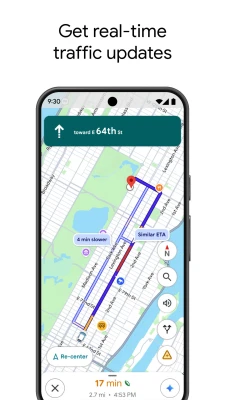
There are a couple of limits to keep in mind. Offline maps do not include live traffic information, and you cannot get walking, cycling or public transport directions without an internet connection. Driving directions work, but only if your whole route stays inside the downloaded area. Offline maps also expire after about 30 days, so Google Maps will ask you to update them before they run out.
How to Download Google Maps Offline on Android and iPhone
The quickest way works the same on both Android and iPhone. Make sure you are connected to Wi-Fi first, because offline maps can be large, and then follow these steps:
1. Open the Google Maps app.
2. Tap your profile picture in the top-right corner.
3. Tap Offline maps.
4. Tap Select your own map.
5. Move and zoom the rectangle so it covers the area you need — your destination city, the airport, your hotel and the roads between them.
6. Check the download size shown at the bottom of the screen. A whole city is usually a few hundred megabytes.
7. Tap Download.
The map will download in the background. Once it appears in your Offline maps list, it is ready to use. You can repeat the process for as many areas as your phone storage allows.
Download an Offline Map for One City
If you are staying in one place, there is an even faster method that skips the rectangle entirely:
1. Search for your destination in Google Maps, for example "Lahore" or "Istanbul".
2. Tap the place name at the bottom of the screen to open its information card.
3. Tap the three dots (More) in the top-right corner of the card.
4. Tap Download offline map.
5. Adjust the area if needed, then tap Download.
Google Maps will show you the size of the download before it starts, so you can decide whether to proceed on your current connection. For large areas, wait until you are on Wi-Fi.
How to Use Google Maps Without Internet

Once a map is saved, using it offline feels almost exactly like using Google Maps normally. Open the app, and it will automatically use your downloaded map when there is no connection. You can search for addresses and places inside the saved area, view businesses and their details, and get driving directions with turn-by-turn voice guidance.
To see everything you have saved, tap your profile picture, then Offline maps. The list shows each downloaded area, its size, and when it was last updated. Tap any area to open it on the map, rename it, or delete it when you no longer need it.
A useful habit is to start your navigation while you still have internet, then keep driving. Even if the signal drops halfway, the route is already loaded and the downloaded map keeps guiding you. Before a long journey through areas with poor coverage, download the map for the full route, not just your destination.
How to Manage and Update Your Offline Maps
Offline maps need looking after, because they expire. Google Maps tries to update them automatically when your offline maps are about to expire and you are connected to Wi-Fi, but it does not always manage it. Here is how to stay on top of it:
1. Open Google Maps and tap your profile picture.
2. Tap Offline maps to see your saved areas and their expiry status.
3. Tap any area that is expiring and tap Update.
4. To make updates automatic, tap the settings icon in the Offline maps screen and turn on Auto-update offline maps.
You can also turn on Auto-download recommended maps in the same settings screen. Google Maps will then suggest maps based on places you are going to, using information from your Gmail or Google Travel bookings. This is handy before a trip, but check the list yourself as well — a recommended map may not cover the exact area you need.
Running low on storage? On Android, you can store offline maps on an SD card instead of your phone's internal memory. In the Offline maps screen, tap the settings icon, look under Storage preferences, and choose SD card. Any maps you download afterwards will be saved there, although maps already downloaded will need to be downloaded again.
Tips for Travelling With Offline Maps
A few habits make offline maps far more useful. First, always download maps at home over Wi-Fi the night before you travel, not at the airport on a slow connection. Second, download a slightly larger area than you think you need — a map that ends halfway to your hotel is not much help. Third, save your hotel and other key places as favourites before you go, so you can find them instantly without searching. Fourth, download maps for each city on a multi-city trip separately, rather than one huge area, because smaller downloads are faster and easier to update.
Finally, remember that offline maps are only one tool. For walking directions without data, Apple Maps on iPhone with iOS 17 or later also supports offline maps, and apps like Organic Maps are designed for fully offline use. But for driving, Google Maps offline remains the simplest option for most travellers, and it is already on your phone. You can get the latest version from our Google Maps listing on AppSoftonic.
Conclusion
Downloading Google Maps offline is a small job that pays off exactly when you need it most. Tap your profile picture, open Offline maps, choose Select your own map, frame the area and tap Download. With the map saved and your GPS working, you can navigate, search and find your way without a single bar of signal. Set it up before your next trip, turn on auto-update so the maps stay fresh, and you will never have to worry about losing your way when the internet disappears.